Your cover design is great, then the username covers it
On a TikTok 9:16 cover, the username, caption, music bar and the row of buttons on the right all sit on top. If you don't design around those zones, half the cover is wasted once it's posted. This template renders at 1080×1920 with the top and bottom bands forced empty. 20 credits, 35 seconds.

The most common short-video cover mistake is putting the important things at the top and bottom: brand name at the top, product at the bottom — then you post it, and the top gets smothered by the username while the bottom gets crushed by the caption and buttons.
This isn't an aesthetics problem, it's a layout problem. The platform's UI is fixed, so your design has to work around it.
The prompt turns UI zones into pixels
Middle band: "the product fills the middle band of the frame, sharp and unmistakably the focal point". The product occupies only that middle strip, and it has to be the unmistakable visual focus.
Empty top and bottom: "Keep the top 13% and the bottom 20% of the frame deliberately empty and uncluttered — on a 1080x1920 cover those are the top 250 and bottom 380 pixels, where the platform puts the username, caption and buttons."
This is the hardest part of the whole prompt: it translates "leave space" into concrete pixels. 13% = 250px, 20% = 380px, and it spells out what the platform will put in those two zones.
Visual requirements: "Bright even light, high contrast, bold simple shapes, one clean focal point" — bright, even, high contrast, big color blocks, a single focal point. Phone screens are small and people swipe fast; a complex composition won't survive half a second.
"one clean focal point" deserves its own mention: don't put three selling points on a short-video cover, put one. Viewers decide whether to swipe away in half a second.
Before you start: login and credits
Log in. Open slloy.com, click "Log in" in the top right, enter your email, and type in the 6-digit verification code you receive. The site only supports code-based login, no password — just remember which email you used.
Credits. Generation is charged per run; this one costs 20 credits (about $0.13 on the largest plan, up to $0.60 on the smallest). Your balance is in the account panel in the top right — click to open it. If you don't have enough, the page tells you directly and nothing is charged.
Do you need to upload an image first? Yes — this is a "keep the original image, change one thing" template. Without an upload you'll get a product the model made up, and credits are still charged. There's a reference image slot in the left column; just drag your photo in.
What the interface looks like. Once you're in the generator, the left column from top to bottom is: image/video toggle, model (Seedream 5.0 for this one), prompt library (shows "preset loaded" — the template has already filled in the words for you), prompt input box, style presets, aspect ratio (9:16 by default), number of images, and the generate button at the very bottom — on a long page you may need to scroll down a bit to see it. The right column is the preview area and recent works.
Steps: one image, two empty bands
Step 1 — Use case "Make a cover" → "TikTok / Reels 9:16 cover" → generate this template.
Step 2 — Upload your product image. {product} product, {surface} surface ("matte white countertop").
Step 3 — 9:16, 20 credits, generate. This run takes 35 seconds, the fastest of the cover templates.
Placeholder cheat sheet
The template has 2 slots wrapped in curly braces, and you need to replace all of them with your own content — leave them unfilled and the model will make something up. The right column has sentences you can paste in directly; get it working first, then customize.
The two bands really are empty
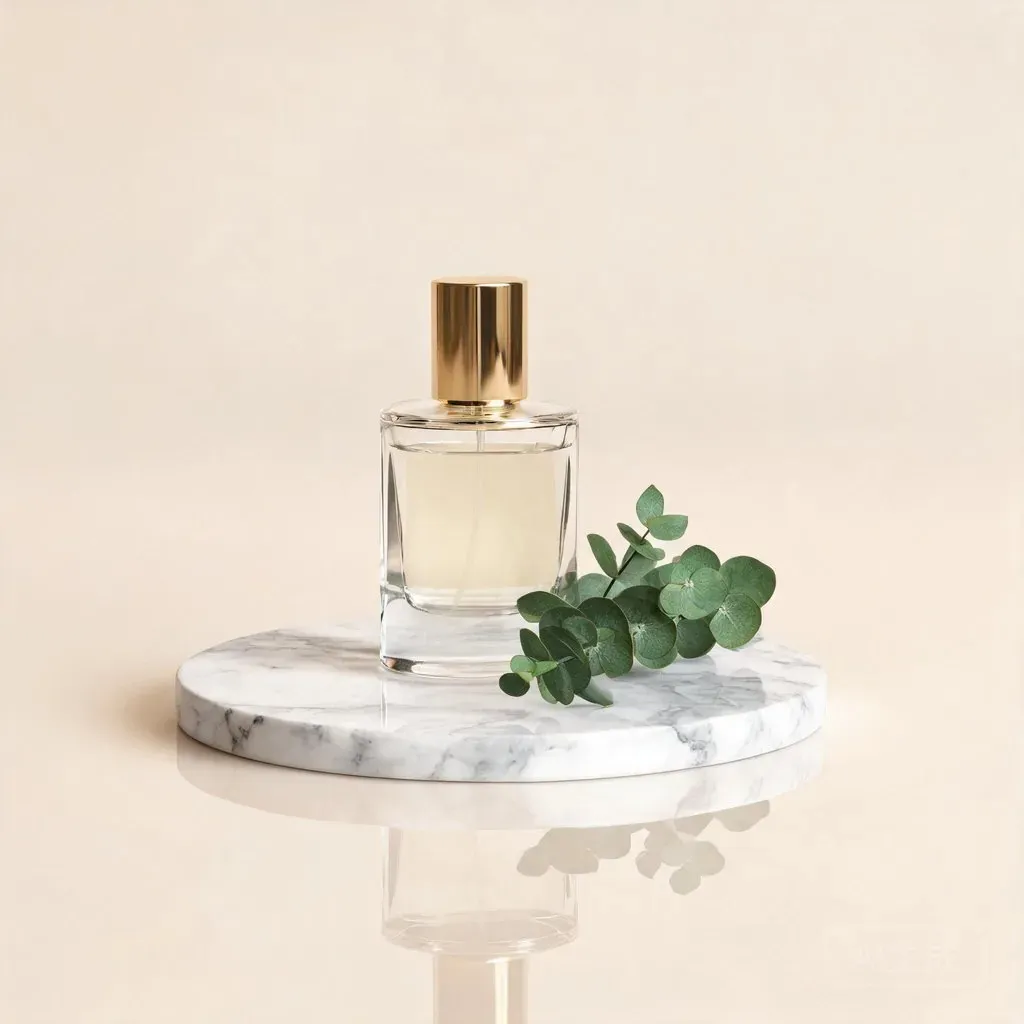
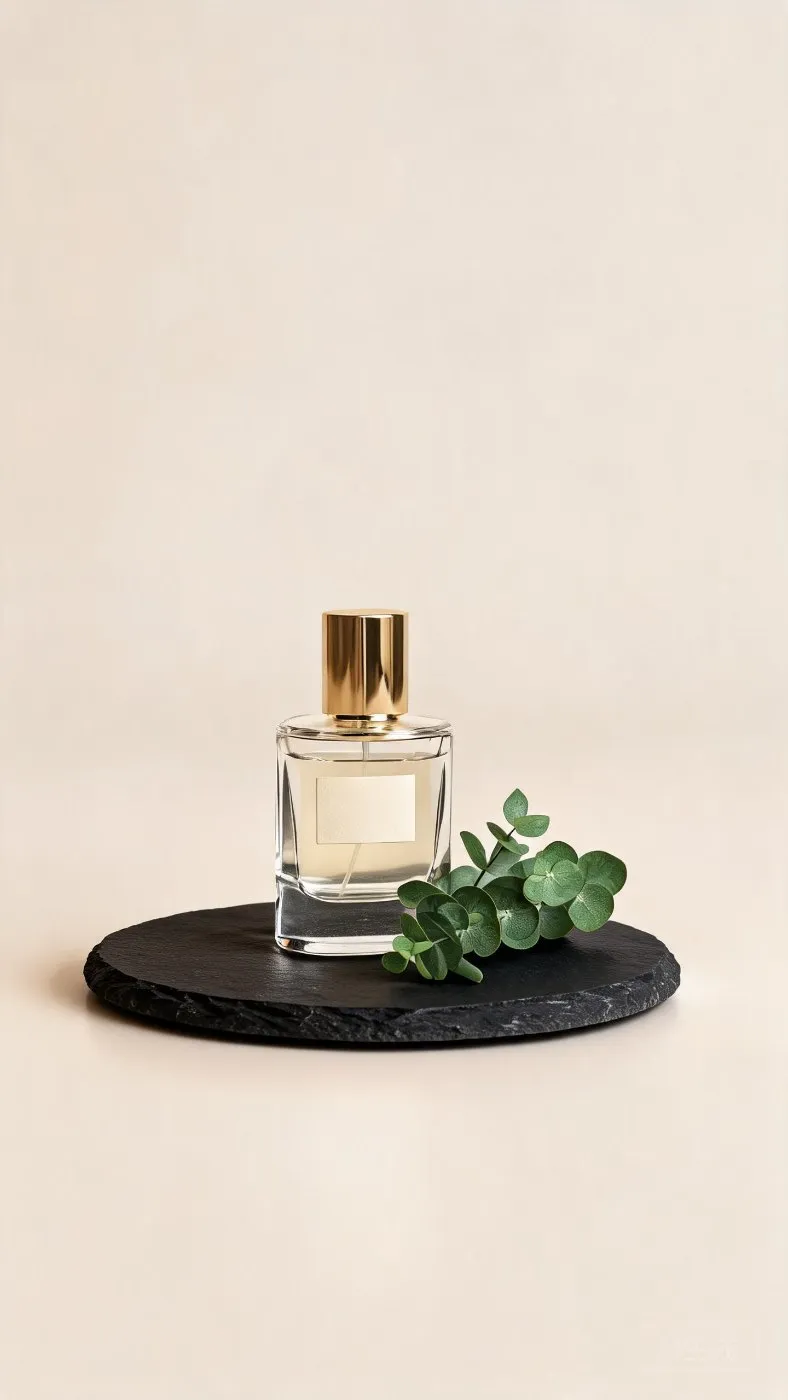
The product sits entirely within the middle band, and the top and bottom are clean background continuation with no subject content. Drop this image into a phone preview and the username, caption and right-side buttons land right on the empty space without covering anything.
The high-contrast, single-focal-point requirements are met too: clean background, crisp product edges, and it's still instantly recognizable when scaled down to phone-screen size.
Three things you must do
Step 1 — Check the crop on a phone. Desktop previews don't show the platform UI. After generating, export to your phone and look at it in TikTok's upload preview — that's the only trustworthy way to sign off.
Step 2 — Don't put too much text on the cover. The platform UI already takes two bands, so adding text makes it cramped. If you must add text, keep it to three words or fewer and place it along the top edge of the middle band.
Step 3 — Think about the cover and the first frame separately. The cover is the image you designed; the first frame is frame one of the video. TikTok lets you upload a cover separately, which is far more controllable than grabbing a frame — especially for product videos, where the first frame often hasn't gotten to the point yet.
After the image comes out: download, sign off, rework
Don't click repeatedly while you wait. This run takes 35 seconds. The page shows a placeholder block or blurry preview first, and the finished image appears only when progress completes. Clicking "Generate" again charges another 20 credits, and the two jobs queue behind each other.
Download and naming. There's a download button below the result, and what you get is the original image at the generated size. Put the use and date in the filename when you save it (e.g. etsy-pin-2026-11-15-v1) so you don't have to dig through chat history a week later.
Three checks. One, is the subject's structure distorted (bottle turned into a cylinder, wrong number of fingers, furniture floating off the ground); two, are there typos in any text in the image; three, are there dirty spots or stray props at the edges. If all three pass, leave it alone.
If you're not happy, change one sentence and run again. Don't rewrite the whole thing — a rewrite means changing direction and throwing away all your earlier judgment. Go back to the "Three things you must do" section above and change just one sentence the way it describes, then spend another 20 credits on a run. Failed jobs are refunded automatically, but they are not retried automatically — you have to click again yourself.
Cost
- 20 credits per image (about $0.13 on the largest plan, up to $0.60 on the smallest), 35 seconds for this run
- 2 covers per video for A/B testing = 40 credits
- For comparison: outsourced short-video cover design runs $15–40 per image
- Tip: covers don't have to map one-to-one to products — the same layout can be reused just by swapping the product description
Related posts
Cinematic rainy neon: an image with a story, no photographer needed
2026-11-15 · Tutorials · 5 min read
Need a product image before you've shot anything: studio-grade shot, 20 credits
2026-11-15 · Tutorials · 5 min read
Studio portrait: 85mm, soft light, real pores, no plastic look
2026-11-15 · Tutorials · 4 min read