Nobody clicks a white background: put the product into a scene that looks lived in
The product images that perform on Etsy, Shopify and Pinterest are almost never pure white background. This template keeps your product untouched and grows a wooden countertop, a piece of fabric and a few props around it, with a shallow 50mm f/2.8 depth of field. 20 credits, 52 seconds.

A white-background image answers "what does it look like"; a scene image answers "do I want it". For the same candle, the white background shows the buyer its shape, while the scene shows them what it would look like in their own home. The conversion gap usually sits right here.
But scene images are the most expensive to shoot: you need a surface, props, lighting, and many attempts before one looks natural. Small brands shoot twice a year and lean on white backgrounds the rest of the time.
Three layers of protection in the prompt
The first layer is still the preservation sentence, but harsher than the background-swap one: "Keep {product} exactly as photographed — same shape, proportions, colour, material, surface finish and every label character." It names "surface finish" and "every label character" explicitly.
The second layer governs placement: "arranged so nothing touches, covers or crowds it" — props may appear, but they may not touch, cover or crowd the product. This sentence decides whether the result is a "product shot" or a "clutter shot".
The third layer governs realism: soft window light from one side, light direction matching the original, a contact shadow directly under the product, then a specified 50mm lens at f/2.8 depth of field. The most practical line comes last: "It must keep its true physical size next to the props — a mug as tall as a vase is a failure." Models easily draw props at the same size as the product; this line turns proportion into an acceptance criterion.
Note that it explicitly bans three things: text, watermarks, and other branded products. The most common failure in scene images isn't composition — it's an unrecognizable logo popping up on a prop.
Before you start: login and credits
Log in. Open slloy.com, click "Log in" in the top right, enter your email, and type in the 6-digit code you receive. The site only supports code-based login, no password — just remember which email you used.
Credits. Generation is charged per run; this one costs 20 credits (about $0.13 on the largest plan, up to $0.60 on the smallest). Your balance is in the account panel in the top right — open it to check; if the balance is too low the page tells you directly and nothing is charged.
Does this one need an image upload first? Yes — it's a "keep the original, change one thing" template. Without an upload you get a product the model invents, and credits are still charged. The left column has a reference-image upload slot; just drag your photo in.
What the interface looks like. In the generator, the left column from top to bottom is: image/video toggle, model (Seedream 5.0 for this one), prompt library (shows "preset loaded" — the template has already filled in the words), prompt input box, style presets, aspect ratio (1:1 by default), number of images, and at the very bottom the generate button — on a long page you may need to scroll down a little to see it. The right column is the preview area and recent works.
Steps: upload one image, fill two blanks
Step 1 — Prompt library → use case "Sell a product" → "Product in a real scene" → generate the same.
Step 2 — Upload a photo with the whole product in frame. Fill {product} with the product itself and {setting} with the scene — the more specific the better: "a light oak countertop, a piece of linen on the right, a white wall in the background, morning window light coming in from the back left".
Step 3 — Aspect ratio stays 1:1, 20 credits, generate. This run took 52 seconds.
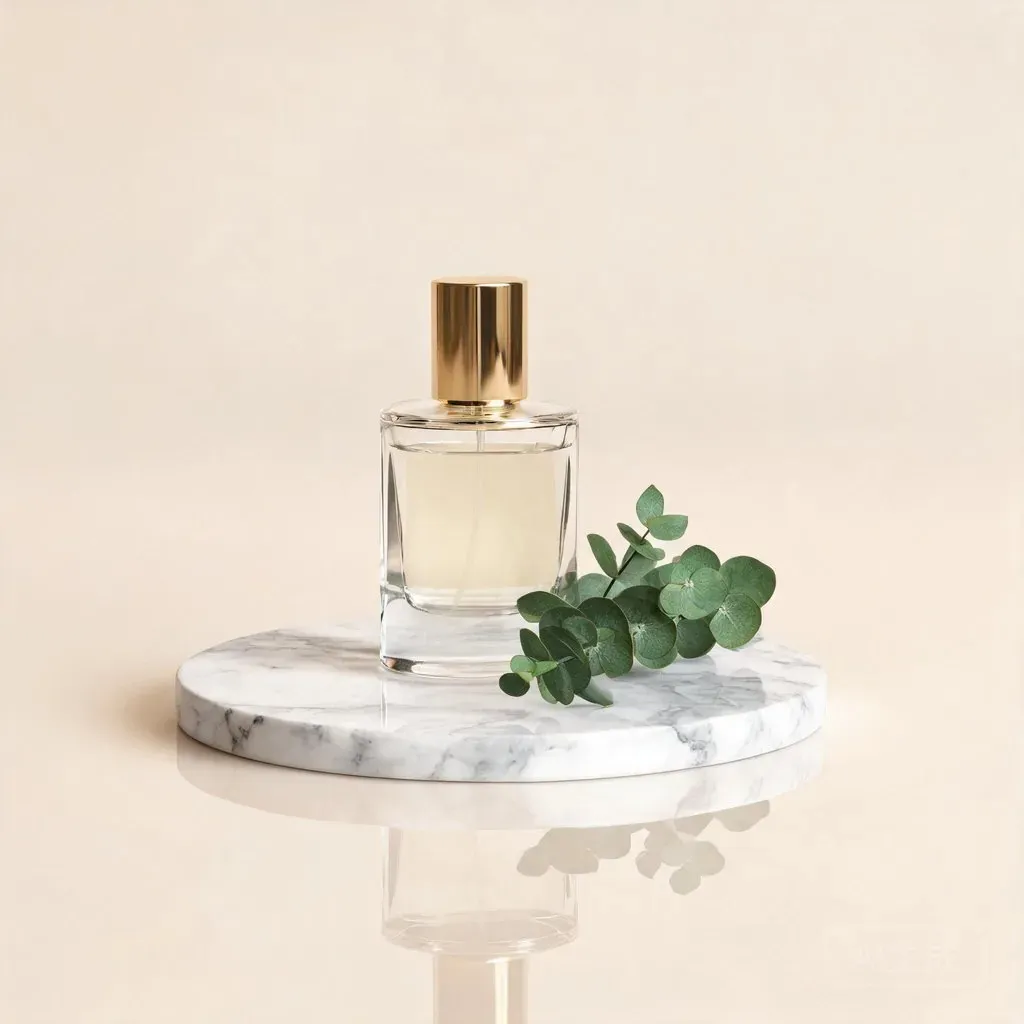
Placeholder copy sheet
The template has 2 blanks wrapped in curly braces, and all of them need to be replaced with your own content — leave them unfilled and the model makes something up. The right column has sentences you can paste in directly; get it working first, then edit.
The scene held up; the label didn't
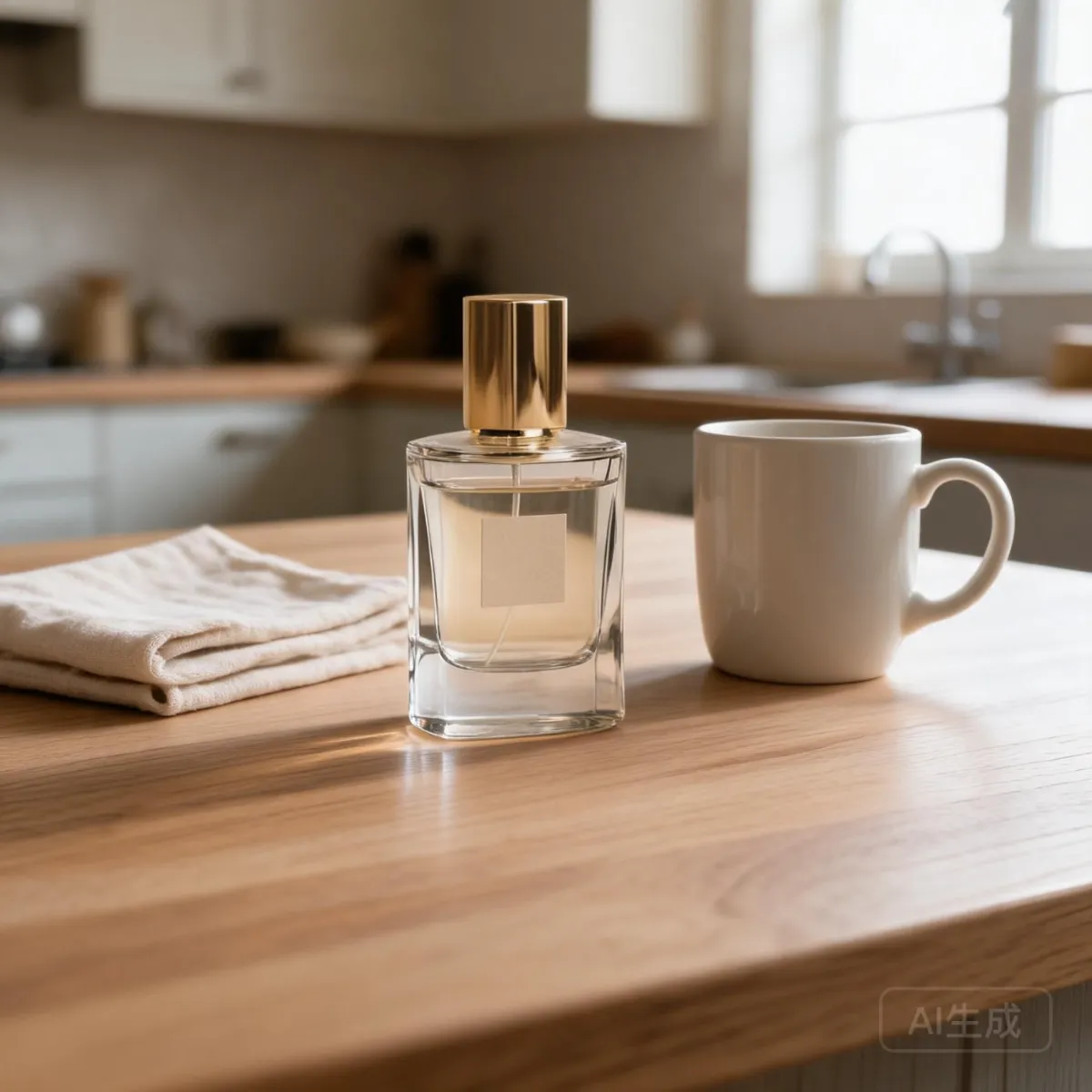
The wood grain, the cup's position, the folds in the background fabric — all correct; the depth of field is sensible, the product is in focus and the props behind it fall off naturally; the product's size relative to the props is also plausible, with no "cup as tall as a vase".
But the label vanished from the final image. The label on the bottle in the original was treated as an optional detail and erased during scene reconstruction. This is the common weakness of editing-type templates: they preserve shape and colour, but not small, information-dense details.
Three fixes
1. Write the label into the product description. Don't just write "perfume bottle" — write "a clear glass perfume bottle with a gold cap, with a dark label on the front reading NOIR and 50 ML". The more specific the information, the less the model dares to omit.
2. Add a closing line: "every character on the label stays unchanged — do not repaint or omit it". The template has a preservation sentence, but it doesn't go down to the character level; adding this line clearly improves the hit rate.
3. Do a pure white background cutout first, then feed the white-background image into the scene. A white-background image has no background interference, so the model has half as much information to process and the label is more likely to survive. Two steps is more reliable than one.
Also watch prop branding: book covers, labels on prop bottles, logos on cups — the model may casually paint on a brand that doesn't exist. If you spot it, change the prop description and write "a plain unmarked object with no text".
After the image comes out: download, check, redo
Don't click repeatedly while waiting. This run took 52 seconds. The page shows a placeholder block or blurred preview first, and the final image appears when progress completes. Clicking "Generate" again charges another 20 credits, and the two jobs queue behind each other.
Download and naming. There's a download button below the result; what you get is the original at the generated size. Put the use case and date in the filename (e.g. etsy-pin-2026-11-15-v1) so you don't have to dig through chat history a week later.
Three checks. One, is the subject's structure distorted (bottle turned into a cylinder, wrong number of fingers, furniture floating off the floor); two, are there typos in any text in the image; three, are there dirty spots or extra props at the edges. If all three pass, you're done.
If you're not happy, change one sentence and rerun. Don't rewrite the whole thing — a rewrite means a new direction and throws away all your earlier judgment. Go back to the "Three fixes" section above and change just one sentence the way it describes, then spend another 20 credits on a run. Failed jobs are refunded automatically, but they are not retried automatically — you have to click again yourself.
Cost
- 20 credits per image (about $0.13 on the largest plan, up to $0.60 on the smallest), 52 seconds for this run
- A product image usually takes 2–3 rounds, budget 40–60 credits
- For comparison: renting a prop-filled set for half a day starts at $500, plus a photographer and post-production
- The same original across three scenes = 60 credits, enough for a full product page set
Related posts
Cinematic rainy neon: an image with a story, no photographer needed
2026-11-15 · Tutorials · 5 min read
Need a product image before you've shot anything: studio-grade shot, 20 credits
2026-11-15 · Tutorials · 5 min read
Studio portrait: 85mm, soft light, real pores, no plastic look
2026-11-15 · Tutorials · 4 min read