Five-Second Seamless Loop: Turn One Product Photo into Hero-Section Motion Footage
Shooting a 5-second product motion clip means lighting, a stabilizer, editing, and exporting — half a day minimum. This template flips it: give it a photo as the first frame, let light drift slowly across the product, and make the first and last frames line up exactly so the player loops with no visible seam. 30 credits.

The first screen of a product page, a feed ad slot, a Shopify homepage banner — all of them now expect a moving asset by default. Static images are losing click-through rate; that's an open secret in the industry.
But building a set for one 5-second clip doesn't pencil out: two hours of lighting, a slider or stabilizer, twenty takes to pick one, then editing, color grading, and exporting — half a day gone. For a seasonal launch, you'd run that process three or four times a month.
Image-to-video solves this problem, but it comes with its own set of traps — most bad takes aren't the model's fault, they're the wrong motion choice.
The Key to a Seamless Loop: First and Last Frames Must Be Identical
"Seamless" isn't an editing trick — it's a geometric condition that must be satisfied at generation time: the last frame at second 5 must overlap exactly with the first frame at second 0. Only then will the loop point not jump when the player repeats.
That yields a hard rule: the motion can't displace anything — it can only change in place. Light moving across glass is fine, because light leaves and comes back; a person walking across the frame is not, because the person can't return to the starting point. That's why this template restricts the motion to in-place changes like "light and shadow drifting slowly."
How to judge a motion choice: imagine playing that motion on loop ten times — will the frame drift further and further off? If it will, it can't be used.
How This Prompt Is Written
The first sentence nails down the goal. "Five-second seamless loop, first and last frames must be identical." That sentence determines the direction of every constraint that follows — not "generate a good-looking video," but "generate a loop that can connect back to itself."
The second sentence gives only one motion. For {motion} I filled in "soft studio highlight drifting slowly across the glass bottle body and gold cap, with very slight changes in the tabletop reflection." One motion, constant speed, no speeding up or slowing down. Give it two motions and the model will switch between them mid-clip, and the switch point will inevitably be discontinuous.
The third and fourth sentences lock down camera and clarity. No push-in, pull-out, pan, or tilt throughout; no cuts or transitions; no added objects, text, or watermarks; edges must be sharp in every frame, and the label in the first frame must be readable.
The fifth sentence locks down the subject. Shape, color, and proportions stay constant throughout — no deformation.
The biggest difference between video prompts and image prompts: an image only needs one frame to be right; a video needs all 120-plus frames to be right. The tighter the constraints, the fewer frames drift off midway.
Before You Start: Login and Credits
Log in. Open slloy.com, click "Log in" in the top right, enter your email, and type in the 6-digit verification code. The site only supports code-based login, no password — just remember which email you used.
Credits. Generation is charged per run; this one is 30 credits (about $0.19 on the largest plan, up to $0.90 on the smallest). Your balance is in the account panel in the top right — click to open it and you'll see it; if the balance is insufficient the page tells you directly, so you won't be charged for nothing.
Does this one need an image uploaded first? Yes — it's a "keep the original image, change only one thing" template. Without an image you'll get a product the model made up, and credits are still deducted. There's a reference image upload slot in the left column; just drag your photo in.
What the interface looks like. After entering the generator, the left column from top to bottom is: image/video toggle, model (for this one, Wan 2.2 I2V · Silent), prompt library (shows "preset loaded" — the template has already filled in the prompt for you), prompt input box, style presets, aspect ratio (default 9:16), number of images, and at the very bottom the generate button — on a long page you may need to scroll down a bit to see it. The right column is the preview area and recent works.
Steps: Four of Them
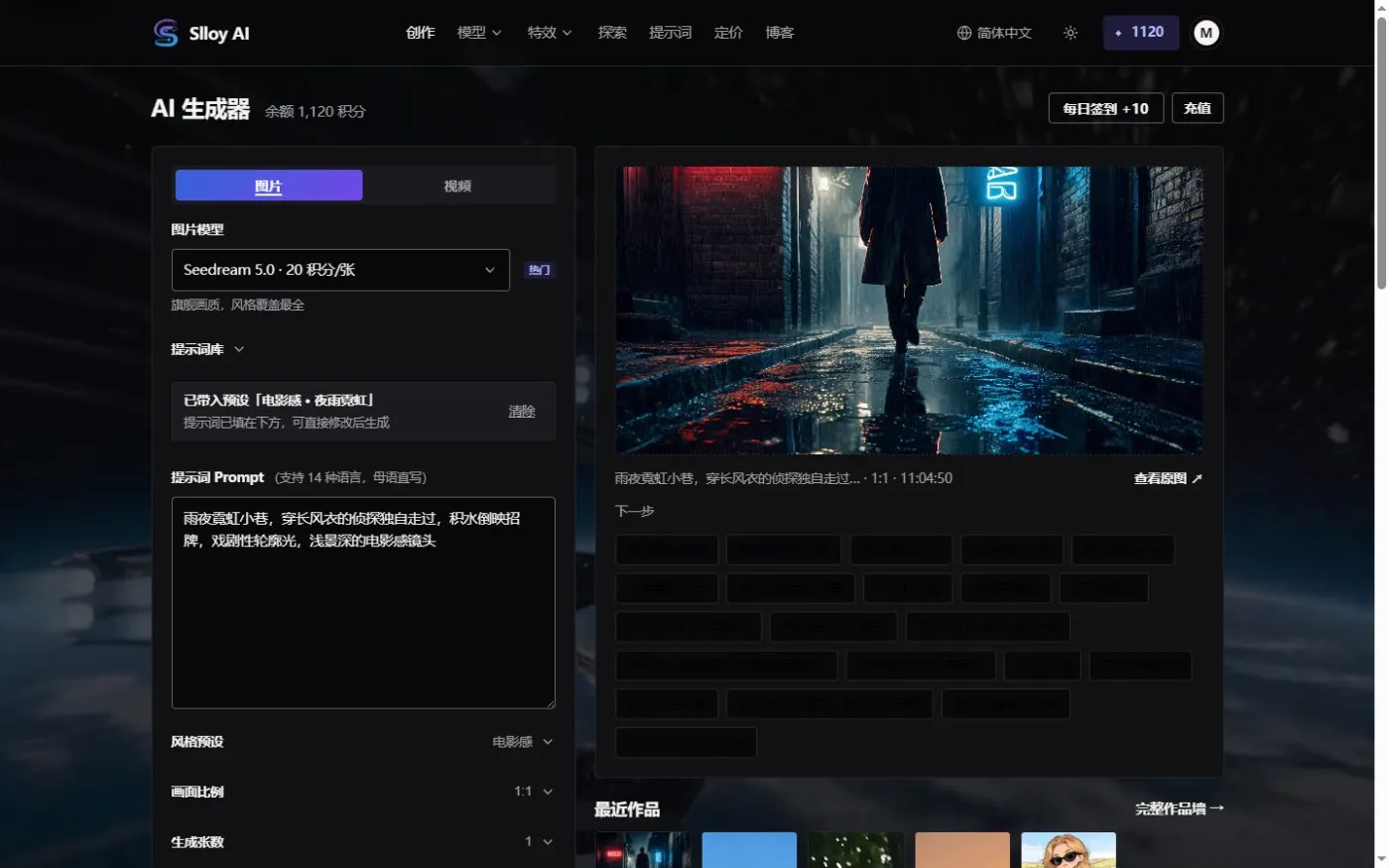
Step 1 — Switch to Video. There are two tabs at the top left of the generator; the default is "Image." Click "Video" first, and only then will the model list switch to video models.
Step 2 — Pick the model, upload the first frame. This template uses Wan 2.2 image-to-video, 30 credits per clip, 5 seconds, silent. The image you upload is the first frame — the composition, camera position, and light direction of the whole clip are determined by it; the model won't recompose for you.
Step 3 — Fill in two blanks. Put the subject in {subject} and the single motion in {motion}. The subject description should include material and color; the motion should include "slowly" and "constant speed."
Step 4 — Pick a ratio, submit. Only three options: 16:9, 9:16, 1:1. For vertical feed, pick 9:16. After submitting it returns queued first; wait for the finished clip.
Placeholder Copy Sheet
The curly-brace slots in the template are blanks — 2 in total, all of which you need to replace with your own content. Leave them unfilled and the model will make something up. The right column has sentences you can copy straight in; get it working first, then tweak.
The Finished Clip: Only the Highlight Moves


The finished clip is exactly as intended: the highlight drifts slowly across the glass bottle body and gold cap, the tabletop reflection shifts slightly with it, and the bottle itself doesn't move at all. The first and last frames line up, so the loop shows no visible seam.
This is exactly the value of the "in-place change" constraint: it limits how much the motion can do, and in exchange the asset can loop indefinitely without any editing work. Placed in a product page hero, it looks like a continuous live shot rather than a 5-second clip replaying over and over.
One honest caveat: this run's status endpoint only returned queued, and I didn't capture the completion time, so its duration in the table below is inaccurate. All three videos did render, but how long video actually takes to finish wasn't measured accurately this time.
Four Traps You Will Hit
Step 1 — Wrong ratio gets rejected outright. Video only has three options: 16:9, 9:16, 1:1. I submitted a 3:4 first frame once and got BAD_RATIO back, but no credits were deducted; resubmitting as 9:16 went through.
Step 2 — The finished ratio follows the first frame, not the option. I picked 9:16 but the uploaded first frame was square, and the output was still square. To be safe, crop the first frame to the target ratio before uploading.
Step 3 — The first frame determines composition and can't be changed. The model won't reframe for you. If the product sits left in the first frame, it sits left in the finished clip; if the first-frame background is messy, it stays messy. Choosing the first frame matters more than writing the prompt.
Step 4 — If the status stays at queued, don't resubmit. Video has to queue, and resubmitting deducts credits again. Wait two minutes and refresh, or poll the status endpoint.
After the Video Comes Out: Download, Review, Rerun
Check the status first — don't rush to regenerate. After submitting it shows queued first, then processing, and only then the finished clip. This time it took 12 seconds. If nothing happens, don't click generate again — it deducts another 30 credits.
Download. The finished clip is a 5-second mp4; the download button is below the player, and saving it gives you the original resolution. The first frame is locked to the image you uploaded, so you don't need to make a separate cover.
Three things to check. One, whether the first frame matches the original image; two, whether the only motion is the one you asked for (reject any extra motion); three, whether the ending connects back to the beginning — drag the player to the last frame and compare it with the first; if they don't connect, it will jump.
If you're not happy, rerun — don't change too much. Video is more random than images; the same prompt can give different results twice. When tweaking, change only one sentence and keep the rest as is; if the same problem shows up twice in a row, the prompt's direction is wrong — go back to the "Four Traps You Will Hit" section above and adjust the way it describes.
Cost, and Where It Fits
- 30 credits per clip (about $0.20–0.90), 5 seconds, silent, 9:16 or 16:9 or 1:1
- One asset usually takes 2 runs to pick one, so budget 60 credits
- For comparison: hiring a motion designer for a 5-second clip runs $300–800; shooting it yourself takes half a day minimum
Good for: product page hero sections, Shopify banners, feed ads, social media Stories, product launch teasers. Anywhere that needs "a bit of motion but no narrative," this is the best value.
Not good for: content that needs someone talking, camera movement, or showing a usage process (unboxing, trying it out, disassembly). Those need real video generation or live shooting; a 5-second in-place loop won't solve them.
Related posts
Cinematic rainy neon: an image with a story, no photographer needed
2026-11-15 · Tutorials · 5 min read
Need a product image before you've shot anything: studio-grade shot, 20 credits
2026-11-15 · Tutorials · 5 min read
Studio portrait: 85mm, soft light, real pores, no plastic look
2026-11-15 · Tutorials · 4 min read