A Pure-White Main Image You Can List on Amazon As-Is
Amazon main images have four hard requirements: pure white background (RGB 255), product fills 85% of the frame, no cropping, and no horizon line. Shoot one on your phone and cut it out in an editor, and you'll usually miss three of the four. This template generates to all four. 20 credits, 39 seconds.

How hard is it to cut out a white background yourself? Use the magic wand on reflective glass and the edges always go gray; use the pen tool and it's an hour per image; and even if you cut it clean, the product often only fills 50% of the frame — so you either reshoot or leave a big field of white.
Amazon's review doesn't care how much effort you put in, only about pixels. If the background isn't 255, it's rejected; if the product doesn't fill enough of the frame, it won't make the main image slot.
The prompt turns each of the four hard requirements into a condition
Background: "pure white background — RGB 255, 255, 255, absolutely even, with no gradient, no vignette and no visible floor line". It even spells out "no visible horizon" — a horizon line means it doesn't count as pure white.
Coverage: "spans about 85 percent of the frame height", plus an explicit failure criterion: "a small product floating in the middle of empty white is a failure". A small product floating in empty space is an automatic fail.
Preservation: shape, proportions, color, material, surface finish, and label text are each listed out, followed by "don't redraw, don't smooth, don't outline".
Contact shadow: "one soft, correctly angled contact shadow directly beneath it, faint enough that the background still reads as pure white". There has to be a shadow, but the shadow can't dirty the background — this sentence is the most finely tuned part of the whole prompt.
The last line, "Leave the aspect ratio exactly as it came in": the output follows the source image's ratio. So if you shot at 4:3, it comes out at 4:3, and you'll need to crop Amazon's square main image yourself.
Before you start: login and credits
Login. Open slloy.com, click "Log in" in the top right, enter your email, and type in the 6-digit code you receive. The site only supports code-based login, no password — just remember which email you used.
Credits. Generation is charged per run; this one is 20 credits (about $0.13 on the largest plan, up to $0.60 on the smallest). Your balance is in the account panel in the top right — open it to see it; if you're short, the page tells you directly and won't charge you for nothing.
Do you need to upload an image first? Yes — this is a "keep the source image, change one thing" template, and without an upload you'll get a product the model made up, with credits still charged. There's a reference image upload slot in the left column; just drag your photo in.
What the interface looks like. Once you're in the generator, the left column from top to bottom is: image/video toggle, model (Seedream 5.0 for this one), prompt library (shows "preset loaded" — the template has already filled in the words for you), prompt input box, style presets, aspect ratio, number of images, and at the very bottom the generate button — on a long page you may need to scroll down a bit to see it. The right column is the preview area and recent works.
How to run it: one image, one blank
Step 1 — Use case "Edit a photo" → "Product photo pure-white background removal" → generate the same.
Step 2 — Upload a photo where the whole product is in frame, evenly lit, with no corner cut off. Fill {product} with the product, spelling out the material ("a clear glass perfume bottle with a gold cap").
Step 3 — No need to pick a ratio (it follows the source image), 20 credits, generate. This run took 39 seconds.
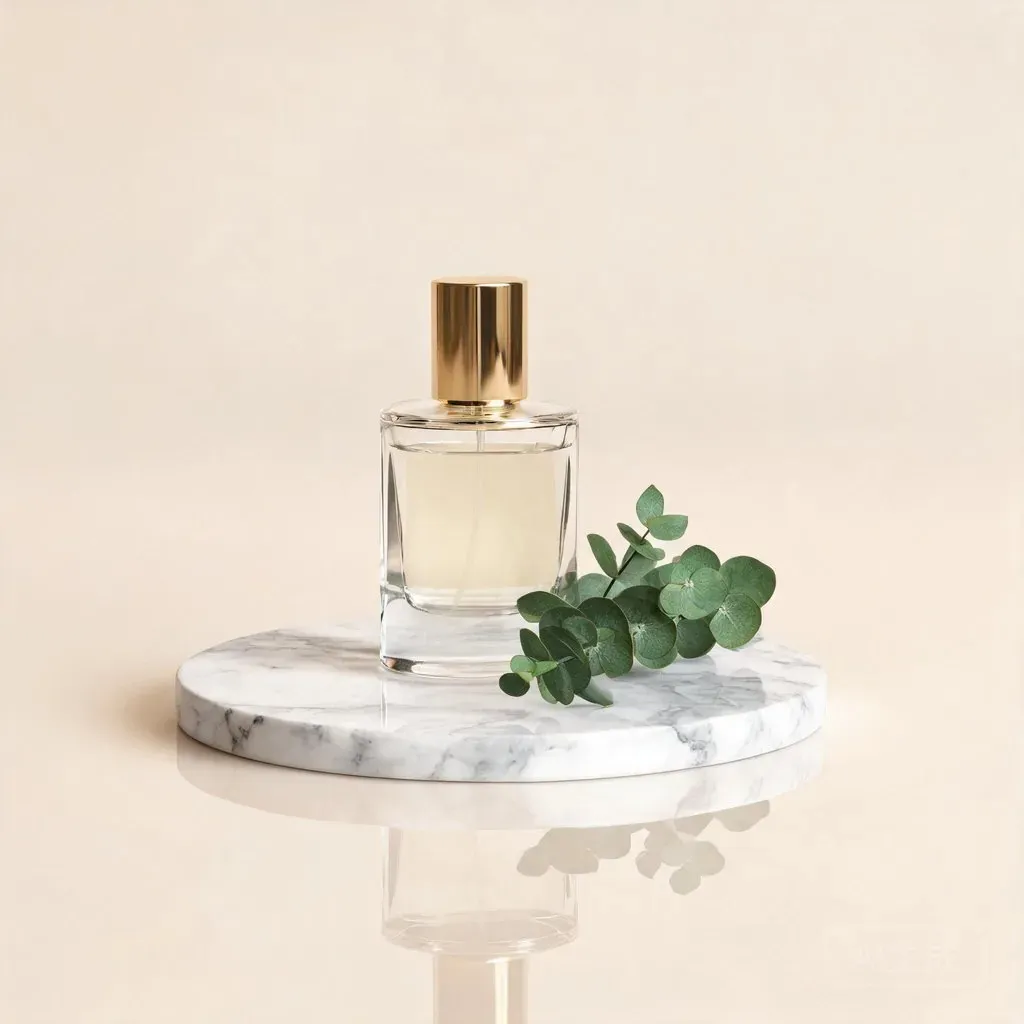
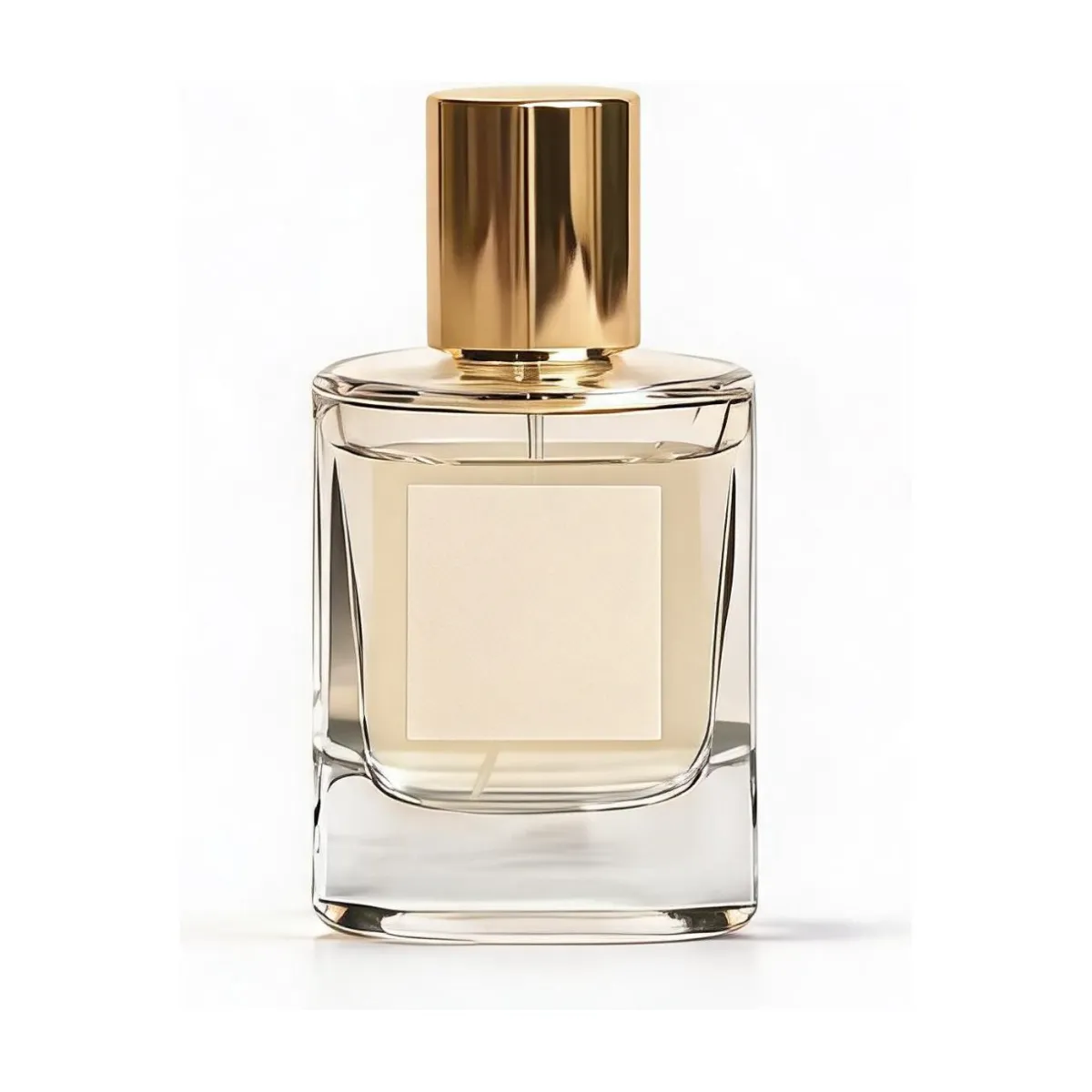
Placeholder copy sheet
The curly-braced spots in the template are blanks — 1 in total, all of which you need to replace with your own content. Leave one unfilled and the model will make something up. The right column has sentences you can paste in directly; get it running first, then tweak.
What makes the output listable as-is
The background is even beyond reproach: all four corners are pure white, with no gradient, no vignette, no horizon line. The product fills close to 85% of the frame height, with a narrow, even margin all around and no cropping. There's a barely visible contact shadow at the base so the product doesn't look like a sticker.
So this image doesn't need another pass in an editor. What's left is acceptance checking, not fixing — run through the two steps below, and if it passes you can upload it straight to the product page.
Two acceptance checks you have to do yourself
Step 1 — Use a color picker, not your eyes. Click the four corners and directly beneath the product, and confirm they're all 255,255,255. A bright screen hides a 3% gray cast; it looks pure white to the eye, but the review system measures it and rejects it.
Step 2 — Zoom in on the edges. Reflective materials (glass, metal) and fuzzy materials are the most likely to carry a gray fringe. The model can't clean it up, and the template recommends a reshoot: switch to a brighter surface so the edges themselves have no gray shadow.
One more note: if the product doesn't fill 85%, it's usually because the source image was shot too tight — the model only enlarges within the source frame, and if there's no margin around the product it has no room. Step back a bit when shooting.
After the image comes out: download, check, rework
Don't click repeatedly while you wait. This run took 39 seconds. The page shows a placeholder block or blurry preview first, and the finished image only appears when progress completes. Clicking "Generate" again charges another 20 credits, and the two jobs will queue behind each other.
Download and naming. There's a download button below the finished image; what you get is the original at the generated size. When saving, put the use and date in the filename (e.g. etsy-pin-2026-11-15-v1) so you don't have to dig through chat logs a week later.
Three checks. One, is the subject's structure distorted (bottle turned into a cylinder, wrong number of fingers, furniture floating off the floor); two, are there typos in any text in the image; three, are there dirty spots or stray props at the edges. If all three pass, leave it alone.
If you're not happy, change one sentence and rerun. Don't rewrite the whole thing — a rewrite is a change of direction, and all your earlier judgment is wasted. Go back to the "Two acceptance checks you have to do yourself" section above, change just one sentence the way it describes, and spend another 20 credits on a run. Failed jobs are refunded automatically, but they are not retried automatically — you have to click again yourself.
Cost
- 20 credits per image (about $0.13 on the largest plan, up to $0.60 on the smallest), 39 seconds this run
- A listing usually needs 6 main + secondary images; running all of them through this = 120 credits
- For comparison: outsourced cutout work is $2–10 per image, but glass and fuzzy materials cost extra; editing software subscriptions are $15–30/month
- The biggest saving isn't money — it's not having to relight and reshoot just to get a white-background image
Related posts
Cinematic rainy neon: an image with a story, no photographer needed
2026-11-15 · Tutorials · 5 min read
Need a product image before you've shot anything: studio-grade shot, 20 credits
2026-11-15 · Tutorials · 5 min read
Studio portrait: 85mm, soft light, real pores, no plastic look
2026-11-15 · Tutorials · 4 min read