Instagram grids aren't square anymore
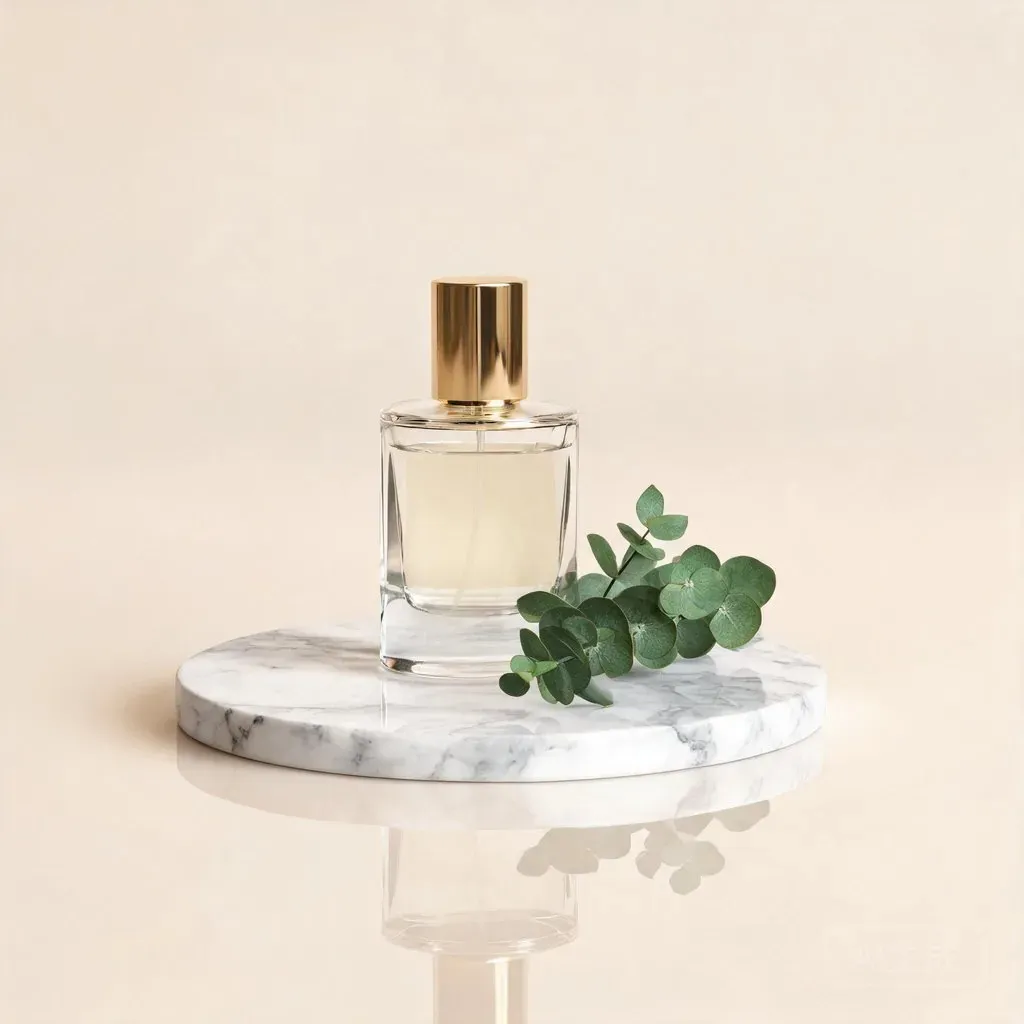
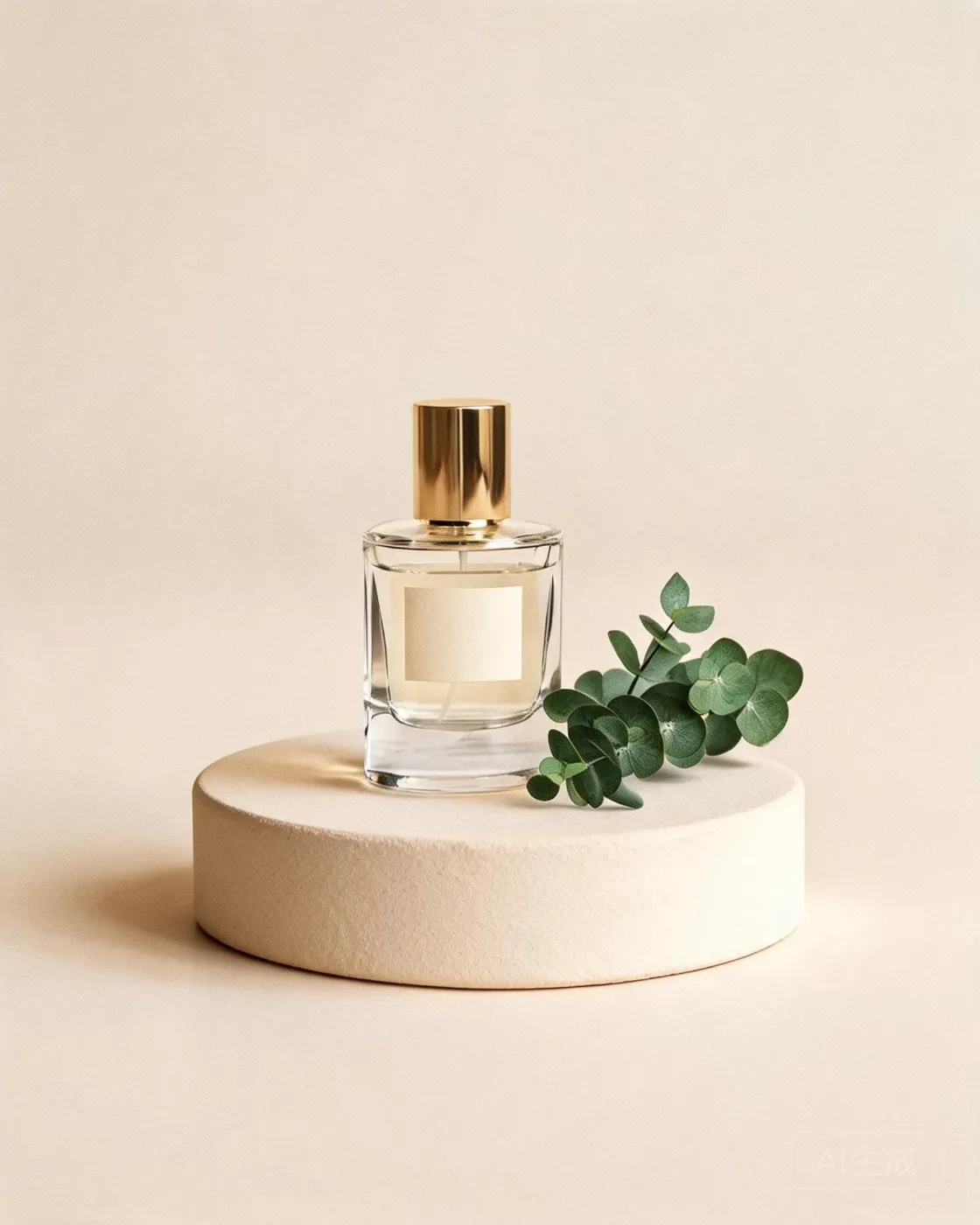
In 2026, Instagram changed its grid preview to 4:5 portrait, so square images get cropped top and bottom in the feed. This template recomposes for 4:5: the product sits centered, a 5% safe margin on every edge, and props spread out naturally. 20 credits, 44 seconds.

The most frustrating scenario: the image looks great, you post it, and it gets cropped — the top of the product is missing, or a label loses half a letter.
This isn't a luck problem, it's a ratio problem. The platform's feed is vertical, your image is square, and it has to crop. Where it crops is decided by the algorithm, not by you — unless you shoot for 4:5 from the start.
The prompt turns "safe" into an executable condition
Composition: "the product sits centred with breathing room above and below" — centered, with breathing room top and bottom. This line directly counters the common problem of the subject butting up against the edge.
Safe margin: "Keep the whole product inside a safe margin of 5% on every edge — the outer band gets cropped in feeds, so nothing that matters may enter it." 5% on all four sides, because the outer band gets cropped in the feed.
Props can go out of bounds: "the props fully inside the frame too" is a separate requirement for props, but the description adds something more practical: props can run off the edge, the product can't. That distinction is professional — props going out of frame actually looks more natural.
Texture: "Warm natural side light, one soft correctly-angled contact shadow, muted palette, subtle film grain." Side light, a single contact shadow, a low-saturation palette, and slight film grain.
There's also the line "no other brand or logo": if books, jars, or props in the scene carry brand marks, Instagram may flag it as unauthorized promotion.
Before you start: login and credits
Log in. Open slloy.com, click "Log in" in the top right, enter your email, and type in the 6-digit verification code. The site only supports code-based login, no password — just remember which email you used.
Credits. Generation is charged per run; this one is 20 credits (about $0.13 on the largest plan, up to $0.60 on the smallest). Your balance is in the account panel in the top right — click to open it. If your balance is too low, the page tells you directly and won't charge you for nothing.
Do you need to upload an image first? Yes — this is a "keep the original, change one thing" template. Without an upload you'll get a product the model made up, and credits are still charged. There's a reference image upload slot in the left column; just drag your photo in.
What the interface looks like. Once you're in the generator, the left column from top to bottom is: image/video toggle, model (Seedream 5.0 for this one), prompt library (shows "preset loaded" — the template has already filled in the words for you), prompt input box, style presets, aspect ratio (4:5 by default), number of images, and the generate button at the very bottom — on a long page you may need to scroll down a bit to see it. The right column is the preview area and recent works.
How to do it: one product image, two blanks
Step 1 — Use case "Post to social media" → "Instagram 4:5 portrait post" → generate the same.
Step 2 — Upload the product image. Fill {product} with the product, {surface} with the surface ("light linen cloth"), and {palette} with the palette ("muted beige and grey-green").
Step 3 — 4:5, 20 credits, generate. This run took 44 seconds.
Placeholder cheat sheet
The template has 3 blanks wrapped in curly braces, and all of them need to be replaced with your own content — leave them empty and the model makes something up. The right column has sentences you can copy straight in; get it running first, then tweak.
The product sits in the safe zone, the frame is vertical
The product lands fully in the middle with margin on all four sides — even if the feed crops a sliver off the outer edge, the subject won't get cut. The breathing room above and below makes the portrait composition hold up without looking empty.
Light comes in from one side, a soft contact shadow falls on the surface, the palette stays in the low-saturation range, and there's a touch of film grain. Posted in a 4:5 grid, it matches the ratio of every other post and won't get squashed into a strip.
Three practical tips
Step 1 — Preview the crop on your phone first. Desktop preview and the actual feed crop aren't the same, especially with multi-image carousels. Before posting, look at the first image on your phone.
Step 2 — Don't stuff 9:16 into the grid. Story assets are 1080×1920; put them in the feed and big chunks get cropped top and bottom. The same asset needs two versions.
Step 3 — Labels have to be readable. If a label is even slightly blurry in the thumbnail, the post loses half its information. After generating, zoom in on the text on the label — if it's blurry, rerun.
After the image comes out: download, check, rework
Don't click repeatedly while you wait. This run took 44 seconds. The page shows a placeholder block or blurry preview first; the finished image only appears when progress completes. Clicking "Generate" again charges another 20 credits, and the two jobs queue behind each other.
Download and naming. There's a download button below the result; what you get is the original at the generated size. Put the use case and date in the filename when you save it (e.g. etsy-pin-2026-11-15-v1) so you don't have to dig through chat history a week later.
Three checks. One, is the subject's structure distorted (bottle turned into a cylinder, wrong number of fingers, furniture floating off the floor); two, are there typos in any text in the image; three, are there dirty spots or stray props at the edges. If all three pass, you're done.
Not happy? Change one line and rerun. Don't rewrite the whole thing — a rewrite means a new direction and throws out all your earlier judgment. Go back to the "Three practical tips" section above, change just one line the way it describes, and spend another 20 credits on a run. Failed jobs are refunded automatically, but they are not retried automatically — you have to click again yourself.
Cost
- 20 credits per image (about $0.13 on the largest plan, up to $0.60 on the smallest), 44 seconds this run
- Three posts a week = 60 credits; a month of social assets costs under $10
- For comparison: a social media agency charges $20–60 per image, plus scheduling wait time
- Tip: generate 3 images of the same template with different props and turn them into a carousel
Related posts
Cinematic rainy neon: an image with a story, no photographer needed
2026-11-15 · Tutorials · 5 min read
Need a product image before you've shot anything: studio-grade shot, 20 credits
2026-11-15 · Tutorials · 5 min read
Studio portrait: 85mm, soft light, real pores, no plastic look
2026-11-15 · Tutorials · 4 min read